Digital Thermostats
How to Use Smart Thermostat Like a Pro?
Smart thermostats are revolutionizing the way we control indoor comfort—and Beris Tech’s latest models are no exception. Since launching earlier this year, these smart devices have helped users enjoy more efficient climate control. But are you using your smart thermostat to its full potential?
In this article, we’ll explore four powerful features of your Beris Tech smart thermostat that many users overlook. Learning how to use them can improve comfort, reduce energy usage, and give you full control whether you're at home or on the go.
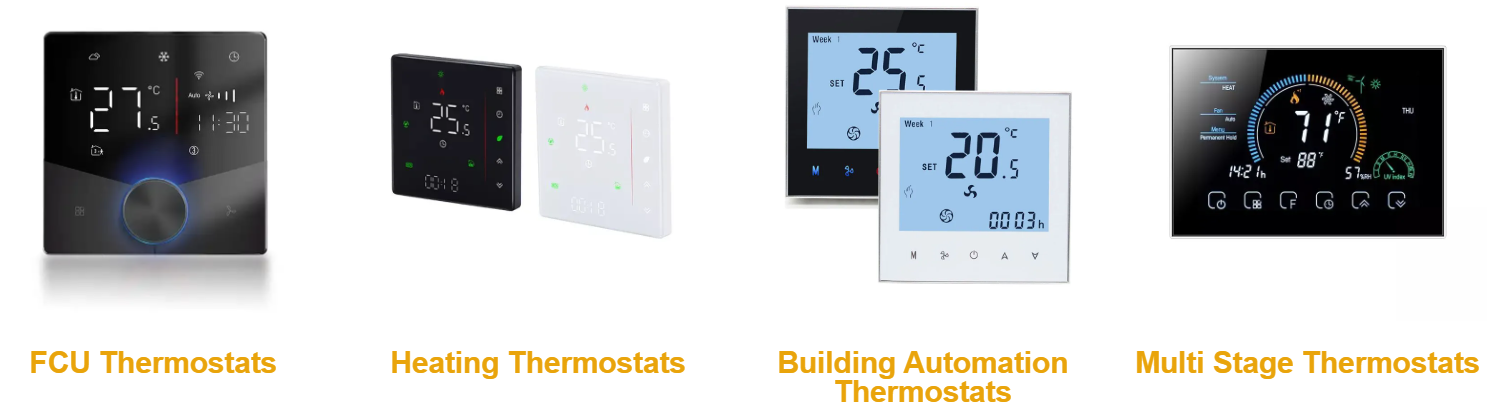
1. Sleep Mode: Set It and Forget It
Did you know your Beris Tech smart thermostat can help you sleep more comfortably and save energy?
Sleep Mode is a built-in feature that automatically shuts down a selected zone after a user-defined period. This is ideal for:
●Hot summer nights, when you want cool air as you fall asleep but don't want it running all night.
●Chilly winter evenings, when heating can be turned off after you’re asleep under the covers.
By using Sleep Mode, you maintain comfort while avoiding unnecessary energy consumption. To activate it, access the settings for the zone you’re using and select a timed shut-off period.
Pro Tip: According to the U.S. Department of Energy, turning your thermostat back 7°–10°F for 8 hours a day can save up to 10% a year on heating and cooling.
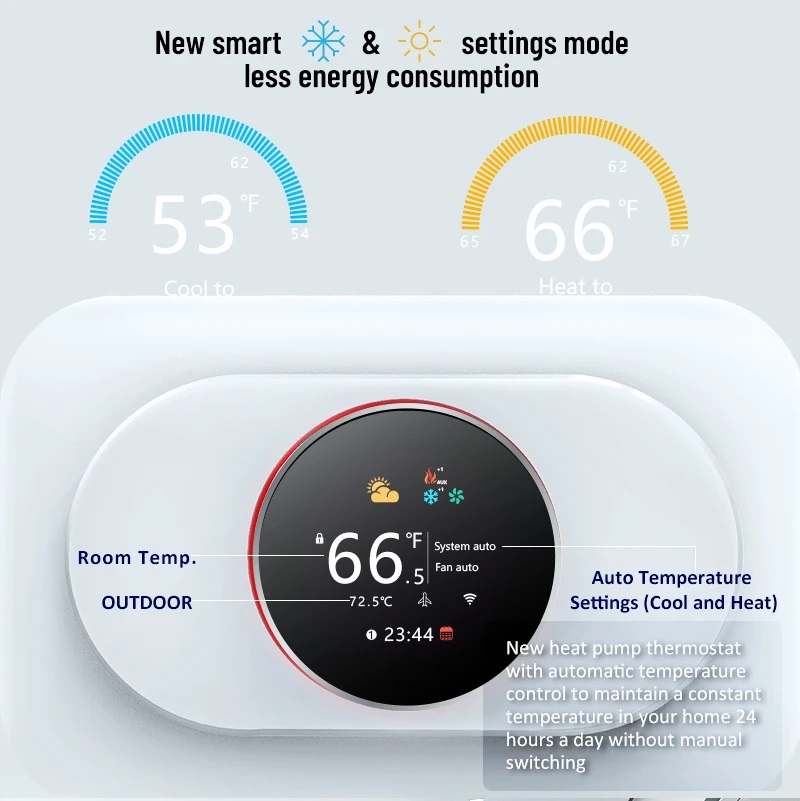
2. Customize Zone Names for Simpler Control
Your Beris Tech system supports multiple zones—but managing them doesn’t need to be confusing.
With the zone naming feature, you can label each thermostat zone for clarity. For example, rename “Zone 1” to “Living Room” or “Zone 4” to “Office.” This is especially helpful for:
●Families managing multiple rooms
●Vacation rentals with multiple guests
●Offices with various departments
How to rename a zone:
1. Tap on the zone name you’re currently in.
2. Long-press the name of the zone you wish to rename.
3. Enter your custom name using the built-in editor.
Having clearly labeled zones allows you to make faster, more informed decisions when adjusting your system—especially through mobile control.
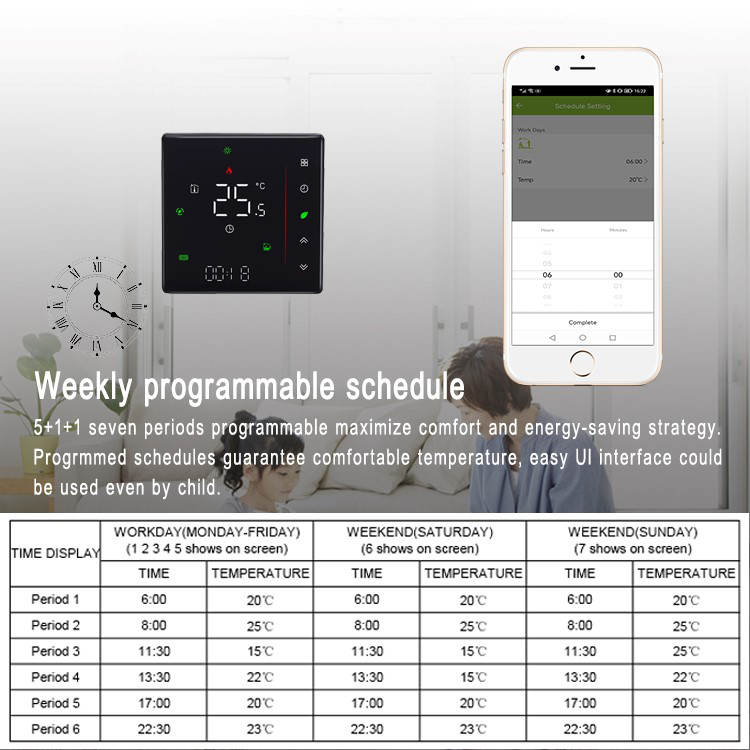
3. Battery Replacement for Wireless Thermostats
For users with radio-controlled thermostats, battery life is key. Fortunately, your Beris Tech device is smart enough to alert you when it’s time for a replacement.
When you receive a low battery alert, follow these steps:
1. Insert a thin object into the top opening of the wall bracket.
2. Gently pry the thermostat from the bracket using the small circular indentations as a guide.
3. Replace the battery following the video instructions on the official Beris Tech YouTube channel.
Important: If you feel resistance when removing the thermostat, do not force it. Contact a certified professional to avoid damaging the unit.
Keeping your battery fresh ensures stable performance and continuous wireless control.
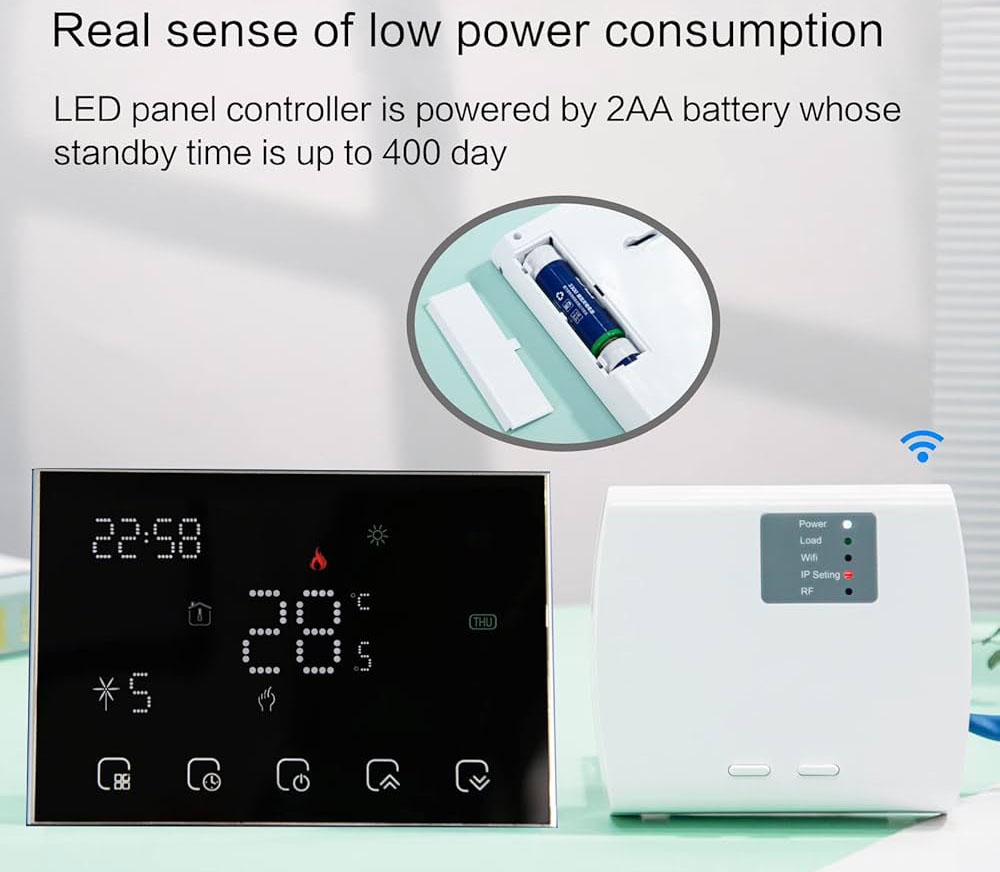
4. App vs. Thermostat: What's the Real Difference?
Here’s a common question: Is there any difference between using the wall-mounted thermostat and the mobile app?
Thanks to the Tuya Cloud web server, the answer is no. Whether you're using your smartphone, tablet, or desktop, the functionality remains the same:
●Adjust temperatures in real time
●Set schedules for energy savings
●Monitor room-specific performance
●Receive alerts and notifications
The real advantage? Remote access. Whether you’re:
●Leaving for vacation and forgot to turn off the AC
●Coming home early and want to pre-cool a room
●Monitoring your system while at work
…you can stay in full control of your indoor environment—anytime, anywhere.
Learn more about Beris Tech Cloud and how it connects your home to your smartphone.
■Final Thoughts
Smart thermostats like Beris Tech’s offer more than just temperature control—they’re part of a smarter, more efficient lifestyle. By unlocking lesser-known features like Sleep Mode, zone customization, remote access, and battery alerts, you’ll make the most of your system while reducing your energy footprint.
For more tips, tutorials, and model-specific guidance (like Beris Tech Blueface, Think, or Lite), check out the Beris Tech YouTube Channel.
Have questions or tips to share? Leave a comment or suggestion on our blog—we love hearing from you!